
Remote Holy Grail: WinKey Remote and EASY Peer-to-Peer Networking
If you’ve ever tried to operate your remote station via CW with a paddle, you know the pain. The manufacturers all have their own remote solutions — Icom’s RS-BA1, Kenwood’s KNS, Yaesu’s SCU-LAN10, FlexRadio’s SmartLink — but they all share the same fundamental problem: they assume you have a public IP address and can punch holes in your router’s firewall.
Good luck with that on Starlink. Or cellular. Or behind your ISP’s CGNAT. Or at a hotel. Or anywhere that isn’t your home network with a cooperative router.
And even when you DO have a public IP and get the port forwarding configured, you still can’t key CW with a paddle. Not with proper timing. Not at 35 WPM. The manufacturers never solved that problem because it’s genuinely hard.
RWK solves both problems in one free, open-source package.
The Networking Problem (and Why Tailscale Changes Everything)
Every manufacturer remote solution works the same way: the control software on your PC connects to an IP address and port where the radio (or a server PC) is listening. Simple enough on a LAN. Nightmare on the internet.
You need to forward specific UDP and TCP ports through your router at the station. You need a static IP or dynamic DNS. You need to hope your ISP doesn’t change your address. And if either end is behind CGNAT (which Starlink, most cellular providers, and an increasing number of cable ISPs now use), you’re completely stuck — there is no port to forward, because you don’t have a public IP at all.
RWK sidesteps all of this with Tailscale. Tailscale creates a private encrypted network between your machines — your operating position and your remote station — using WireGuard tunnels that traverse NAT, CGNAT, firewalls, and anything else the internet throws at you. It just works. Every time.
The key difference with RWK: you don’t install Tailscale on your computer. RWK ships with its own embedded Tailscale sidecar that runs only while the application is running. No system service, no admin rights, no conflict with anything else on your machine. You sign in once with your free Tailscale account, and both ends find each other automatically from then on.
No port forwarding. No public IP. No dynamic DNS. No firewall rules. Works on Starlink. Works on cellular. Works at a hotel. Works anywhere.
The Port Forward Wizard: Any Radio in Five Clicks
Once your two machines are on the same Tailscale network, you need to tell RWK which ports to forward for your specific radio. This is where the built-in Wizard comes in.
[wizard]
The Wizard ships with a catalog of every major manufacturer’s remote protocol — the exact ports, the exact settings, and most importantly, the exact instructions for what to configure on the radio side and in the control software. You don’t need to read the manual. You don’t need to hunt through forum posts. You select your radio, tell it the IP address on the station LAN, and click Apply.
Five steps. Done. The Wizard creates the forwarding rules, saves a backup profile, and opens a plain-English setup guide in Notepad that tells you exactly what to do next — which menu on the radio, which setting in the software, and what the symptom will be if you get it wrong.
Supported radios include Icom (RS-BA1, wfview), Kenwood (KNS direct, ARHP), Yaesu (SCU-LAN10), FlexRadio (SmartSDR), Elecraft (K4), and RemoteRig (RRC-1258). Plus generic entries for any device that speaks serial or TCP.
FlexRadio: No SmartLink Required
FlexRadio owners have SmartLink, but it requires a cloud account, a subscription, and — you guessed it — specific network conditions. RWK provides an alternative: the built-in VITA-49 Discovery Relay.
FlexRadio 6000 and 8000 series radios announce themselves on the LAN using VITA-49 discovery broadcasts on UDP port 4992. SmartSDR listens for these announcements to find the radio. Obviously, those broadcasts don’t cross the internet.
RWK’s Station captures these discovery broadcasts, rewrites the IP address and port fields inside the VITA-49 payload, and forwards them to the Client over the Tailscale tunnel. The Client re-emits them on its own LAN. SmartSDR sees the radio appear as if it were local, connects through the forwarded ports, and everything works — no SmartLink account, no cloud dependency, no public IP.
The Wizard knows about this. When you select a FlexRadio entry, it reminds you to enable the discovery relay checkboxes on both ends.
Now: Any Radio with Just a CAT Port
Here’s what changes with easy port forwarding: you don’t need a fancy network-equipped radio to remote it. If your radio has a CAT port — serial or USB — you can remote it.
Set up a virtual serial port bridge (VSPE or com0com, both free) to tunnel the CAT connection over a TCP port. RWK forwards that port through the Tailscale tunnel. Your logging software on the client side talks to a virtual COM port that appears to be local, but it’s actually connected to the real radio 3000 miles away.
For audio, use Mumble (free, open-source, designed for low-latency voice) or any other VoIP solution. Point it at 127.0.0.1 through another RWK forward rule.
The Wizard has a “Generic RS-232 serial bridge” entry that walks you through this exact setup and generates the VSPE or com0com configuration commands.
The Real Holy Grail: Paddle Keying Over the Internet
Everything above is useful, but what CW operators really want is this: sit down with a paddle and key the remote radio. At full speed. With proper timing. Hearing sidetone instantly.
This is the problem everyone said couldn’t be solved. And there are good reasons for that pessimism. The internet has latency — 20ms on a good day, 300ms on Starlink. It has jitter — the time varies packet to packet. TCP retransmissions can add hundreds of milliseconds of delay. A dit at 30 WPM is 40ms long. If your network delay varies by more than half a dit, your CW sounds like garbage at the receiving end.
RWK solves this with a purpose-built architecture:
True UDP datagrams. Not TCP, not WebSocket. Raw UDP over the Tailscale WireGuard tunnel. No retransmission delay. No head-of-line blocking. A packet either arrives on time or it doesn’t — and not arriving is better than arriving late.
QPC timestamps. Every dit and dah edge is timestamped with the Windows high-resolution performance counter at the moment the paddle contact closes. Not when the software gets around to processing it. Not when the packet leaves the network stack. The actual moment.
Adaptive jitter buffer. The Station doesn’t play edges the instant they arrive. It buffers them briefly and replays them at calculated absolute times, absorbing the network jitter so the radio hears clean CW regardless of what the internet is doing between the two points. The buffer adapts to the measured path — 60ms on a direct connection, up to 300ms on a satellite link.
Local sidetone with zero delay. You hear the sidetone the instant you close the paddle contact, generated locally by the software keyer. The radio keys a fraction of a second later (the jitter buffer delay), but your ear hears it immediately. This is exactly how a physical keyer works — you hear the sidetone from the keyer, not from the radio’s monitor.
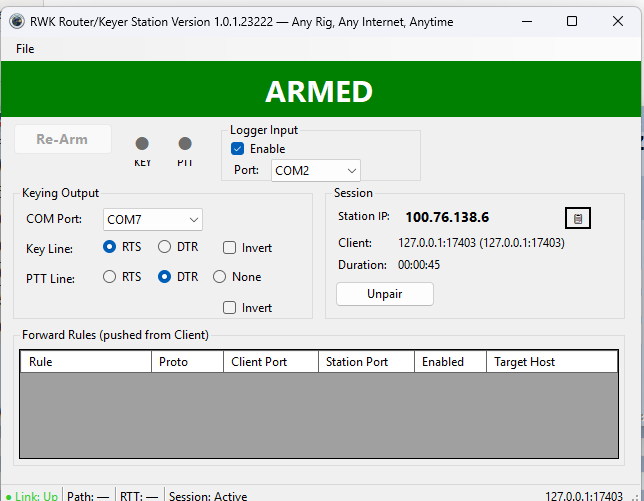
Meanwhile, at the remote station, the Station app replays your CW with precise timing through its serial keying output:
The Station shows ARMED (green banner) when it’s ready to key, with KEY and PTT indicators that flash in real time. The fail-safe system monitors the connection and forces key-up if anything goes wrong — lost network, stale edges, or any anomaly. The Re-Arm button clears the latch when you’re ready to resume.
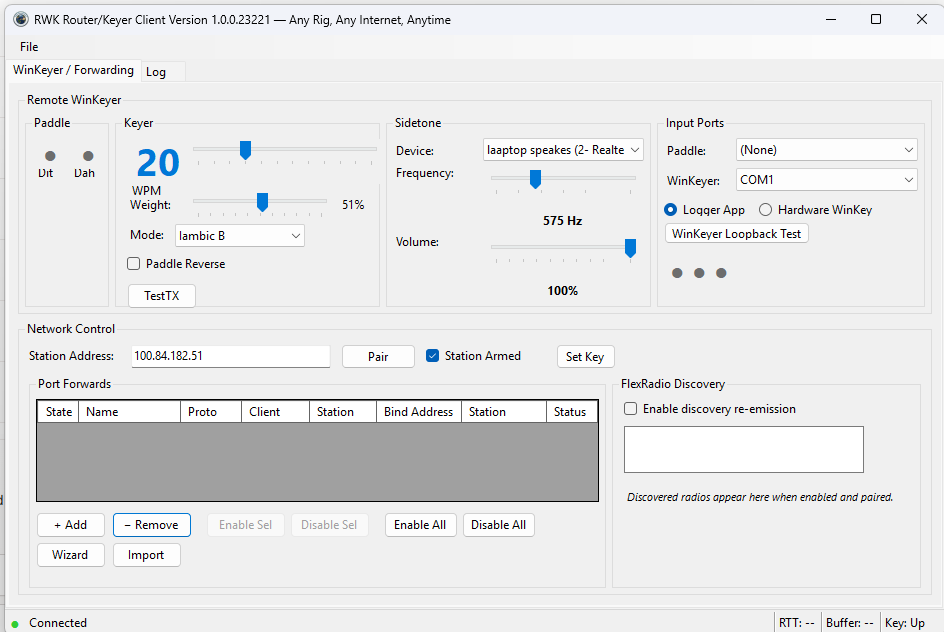
The Client UI shows your paddle state, keyer speed, and mode (Iambic A, Iambic B, Ultimatic, Bug, or Straight Key). The sidetone section lets you pick your sound device and adjust frequency and volume. The sidetone can share the same sound card as your radio’s receive audio — so you hear your own CW mixed with what the other station is sending, just like sitting in front of the radio.
Hardware WinKeyer Option
If you own a K1EL WinKeyer (WK2 or WK3), you can use it as your input device instead of RWK’s software keyer. Select “Hardware WinKey” mode, choose the COM port, and RWK talks directly to the chip. The WinKeyer decodes your paddle input using its own iambic logic, echoes the decoded characters back, and RWK re-generates them with proper timing for the remote station.
The trade-off: there’s a one-character decode delay (the chip must finish recognizing the letter before RWK can send it), so local sidetone is muted — you use the WinKeyer’s own sidetone output instead. For operators who prefer the feel of K1EL’s keyer over a software implementation, it’s a worthwhile trade.
Free and Open Source
RWK is free, open-source (MIT license), and runs on Windows 10/11. No .NET runtime to install — the executables are self-contained. No admin rights needed. No cloud accounts beyond the free Tailscale sign-in.
Download the installer from GitHub: https://github.com/w1ve/rwk-router-keyer/releases
If your radio isn’t in the Wizard catalog yet, the catalog is a simple JSON file — pull requests welcome.
73 de W1VE

4 thoughts to “Remote Holly Grail: Winkey Remote, and EASY Peer-to-Peer Networking”
The explanation separates local sidetone from remote keying, which seems especially important for understanding what the operator hears versus what happens at the station. A diagram showing those two paths and the fail-safe state would make a useful companion to the walkthrough. I run kling 4.0, our AI visual and video creation website; I would keep any animated explanation separate from measured latency demonstrations and use actual captures for timing claims.
Are you a ham? You did not mention aul call. The latency from the key to the local sidetone is <2mS, and it is the important latency. This is because the sidetone is the feedback to your ears from what you are
doing on the paddle. it doesn't matter what the latency is at the station end — it creates an exact replica of what you are sending, delayed by the overall latency. So — even if the CW is delayed by 6000mS (6 sec),
it will faithfully be reproduced by the CW as generated by the remote side. Typically, I use thie from Maine to Malawi, and see 280-300mS latency, which is less than a character at 40wpm CW.
The embedded Tailscale sidecar running only while the app is open—no system service, no admin rights—is the detail I keep coming back to. That’s usually where remote setups get messy. For anyone who likes visual storytelling, Seedance 2.5 is handy for turning a concept like this into a short clip.
The WinKey remote plus simple peer-to-peer networking is a neat combination for operators who do not want a full contest stack. Clear write-up of what actually has to be running on each end.